
Remove Handwriting from a Selected Area of an Image: Step-by-Step Guide
Remove handwriting from a selected area of an image, photo or scan. Follow this illustrated guide to adjust the rectangle and review the result.
RemoveHandwriting Editorial Team
Product documentation and comparison editors
We publish practical guides, product facts, and comparison frameworks for document handwriting removal. Canonical facts are maintained on the Product Facts page.
Published on
About the editors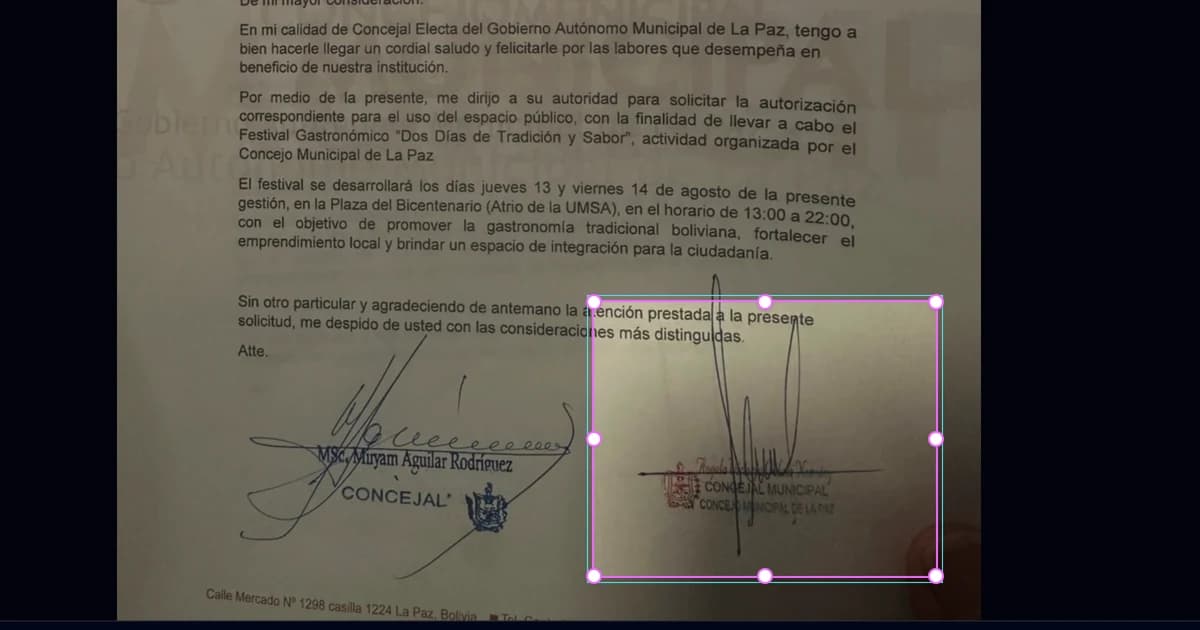
To remove handwriting from a selected area, upload a single image, photo or scan to RemoveHandwriting, choose Selected area, and place the rectangle around the marks you want to erase. Review the selection, then start processing. This gives you a way to target one part of a document instead of requesting handwriting removal across the entire image.
A page can contain several kinds of handwriting: a note you want to remove, an answer you want to keep, and a signature elsewhere. Selective handwriting removal lets you identify the part that needs attention. It is designed to preserve handwriting outside your selection, although AI processing does not guarantee that every surrounding detail will remain identical.
Open the image upload page to try Selected areaWhen should you erase only part of an image?
Choose a selected area when the cleanup has a clear boundary. You might remove a handwritten margin note from a scan, clear one filled-in field on a form, or erase an answer in a worksheet while keeping notes elsewhere. A local signature can also be a target when you are preparing a copy you are authorized to edit.
The important choice is where the unwanted writing appears. The rectangle identifies an area, not a handwriting color or a particular writer. If it contains several handwritten marks, those marks may all be removed. Keep the box close to the intended content and include the ends of long strokes.
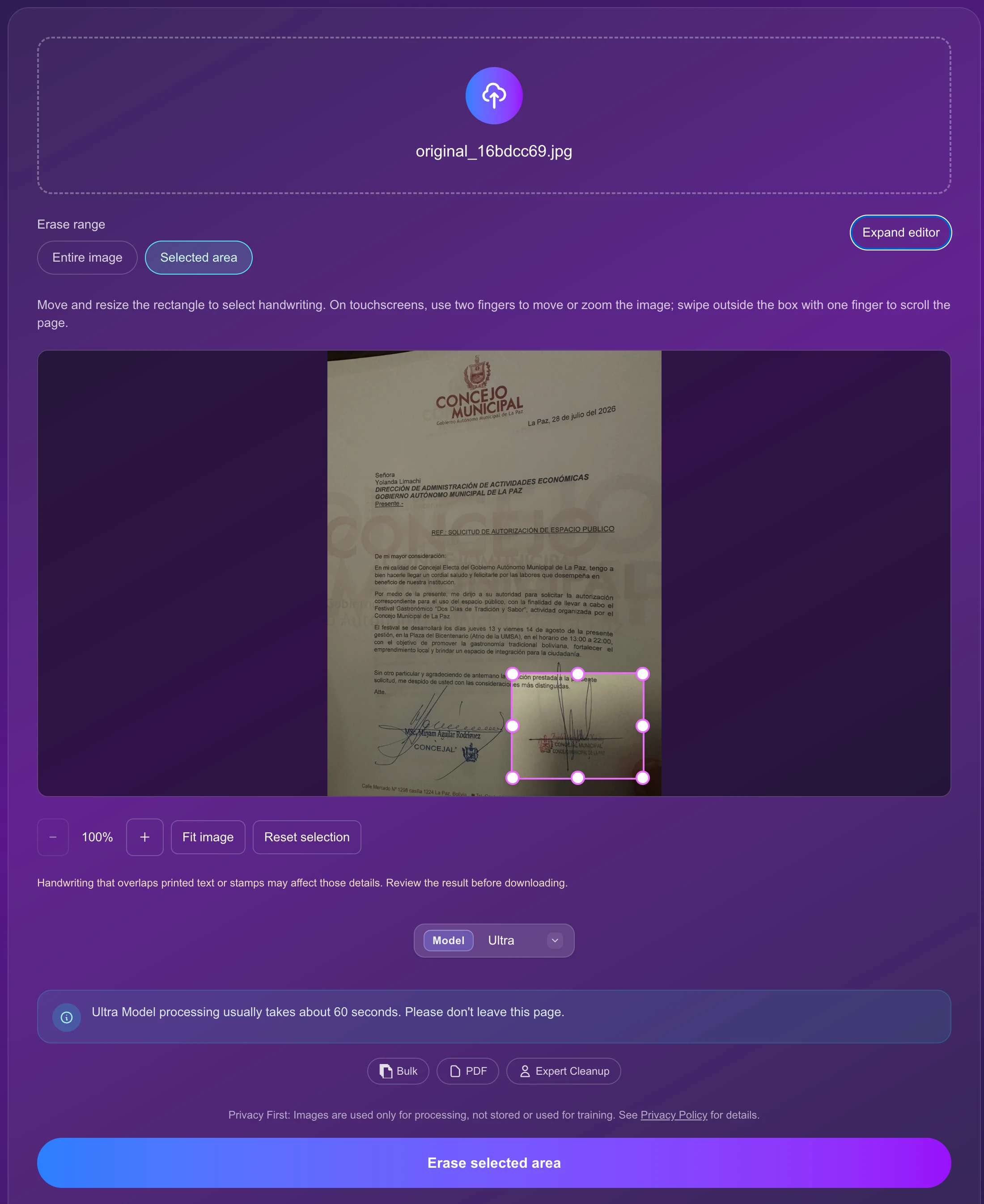
How to remove handwriting from a selected area
Upload one document image
Open the upload page and select a single image. Wait for its preview to appear. Use a clear photograph or scan with readable printed text and enough contrast to distinguish the handwriting. Selecting a file does not start processing.
Choose Selected area
Under Erase range, click Selected area. When your account is eligible and has enough credits, the full-screen editor opens automatically. This mode uses Ultra and costs 5 credits per image. Check the displayed cost before continuing.
Move and resize the rectangle
Move the box over the handwriting you want to remove, then drag its edge or corner control points to adjust it. Cover the complete mark, including strokes extending into nearby blank space. Avoid including other handwritten content you want to keep.
Finish editing the selection
Click Done editing to return to the normal view with your selection preserved. Exit full screen also returns without starting a job. Neither action begins erasing or deducts processing credits. Use Expand editor if you want another close look before submitting.
Click Erase selected area
Review the image, selection and displayed credit cost, then click Erase selected area to submit the task. Keep the page open while it processes. Finishing your selection is separate from this processing action, so you can adjust the box before committing to a run.
Review and download the result
Compare the output with the original before downloading. Inspect the selected area, nearby printed content and handwriting elsewhere on the page. Check the page edges too: document cropping, straightening and perspective correction can change the framing and output dimensions.
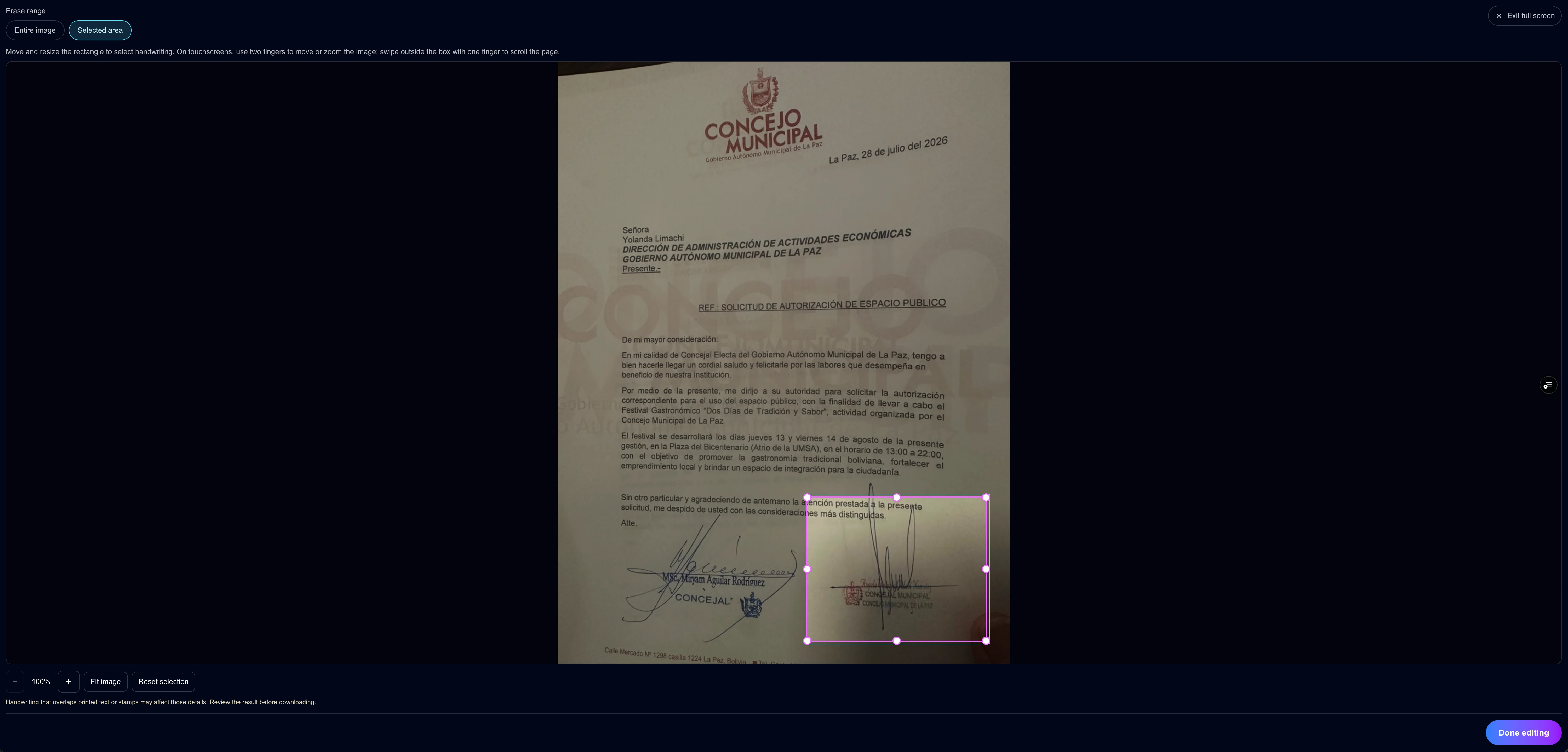
Adjust the selection on a phone
On a touchscreen, drag inside the rectangle to move the selection and use its control points to resize it. Use two fingers to move or zoom the image when you need a closer view. Swipe outside the box with one finger to scroll the page rather than dragging the picture.
Fit image brings the picture back into view, and Reset selection returns the box to its default position. In normal view, Expand editor gives you more room to work. If a small mark is hard to select, zoom in before adjusting the box instead of making the selection unnecessarily large.
Entire image, Selected area or manual eraser?
| Option | When to use it | What you control |
|---|---|---|
| Entire image | You want handwriting cleanup across the image. | Choose the whole image as the processing range. |
| Selected area | One part needs cleanup and other handwriting should remain. | Move and resize a rectangle before AI processing; Ultra costs 5 credits per image. |
| Manual eraser | A processed result has a few leftover strokes. | Touch up the existing result with a brush; this is not the same as selecting an AI processing area. |
Use Selected area to describe the intended scope before processing. The manual eraser is a separate tool for touching up an existing result. For its workflow and limitations, read the manual eraser guide linked below.
What to check before using the cleaned copy
A rectangle improves control over the requested edit; it is not a guarantee of exact preservation. Handwriting that crosses printed letters, table lines, names or stamps can be difficult to separate. Check these details at a readable zoom level, especially small characters and punctuation.
The process also requests document-edge cropping, straightening and perspective correction after the local cleanup. That can change the page size or move content within the output frame. Judge whether the document content is preserved rather than expecting the before-and-after images to line up pixel for pixel.
Keep the original and review the copy before sharing or printing it. If important text becomes unclear, try a clearer source or a more carefully placed selection. The screenshots here demonstrate the interface and selected scope; they do not establish a universal accuracy rate.
Frequently asked questions
- Can I erase handwriting from only part of an image?
- Yes. Upload one image, choose Selected area, and adjust the rectangle around the handwriting you want removed. Click Done editing, then Erase selected area to start processing.
- Will handwriting outside the rectangle stay unchanged?
- The feature is designed to preserve handwriting outside your selection. Exact preservation is not guaranteed, and cropping or perspective correction can change the framing. Compare the result with your original before using it.
- How much does selected-area removal cost?
- Selected-area removal uses the Ultra model and costs 5 credits per image. Sign in and meet the current account and model eligibility requirements, including having enough available credits. Check the cost shown before submitting.
- Does Done editing charge credits or begin erasing?
- No. Done editing and Exit full screen preserve the selection and return to normal view. Processing starts when you click Erase selected area, through the existing credit-charging flow.
- Can I select an area on mobile?
- Yes. Move the box and resize it with the control points. Use two fingers to move or zoom the image and one finger outside the box to scroll the page.
- Can I use this rectangle workflow for PDFs or bulk images?
- This guide covers the single-image editor on the upload page. It does not describe per-page selection for PDFs or separate rectangles for a bulk job. Use the dedicated PDF or bulk workflow for those file types; do not assume they offer the same selection controls.
- Will printed text and stamps inside the selection be preserved?
- The tool aims to retain printed text and stamps while removing handwriting, but overlapping details may be changed or reconstructed. Review those areas carefully, especially when the handwriting runs directly across them.
Choose the handwriting you want to remove
Start with one image, place the rectangle carefully, and check the output before saving your cleaned copy.
Open the image upload page to try Selected areaNext step
Use the matching workflow for this topic.