
Touch Up Leftover Handwriting with the Manual Eraser
After automatic cleanup, paint leftover handwriting white on the result. The manual eraser works on single images, bulk jobs, and PDF pages, uses no extra credits, and stays on this page until you download.
RemoveHandwriting Editorial Team
Product documentation and comparison editors
We publish practical guides, product facts, and comparison frameworks for document handwriting removal. Canonical facts are maintained on the Product Facts page.
Published on September 28, 2026
About the editors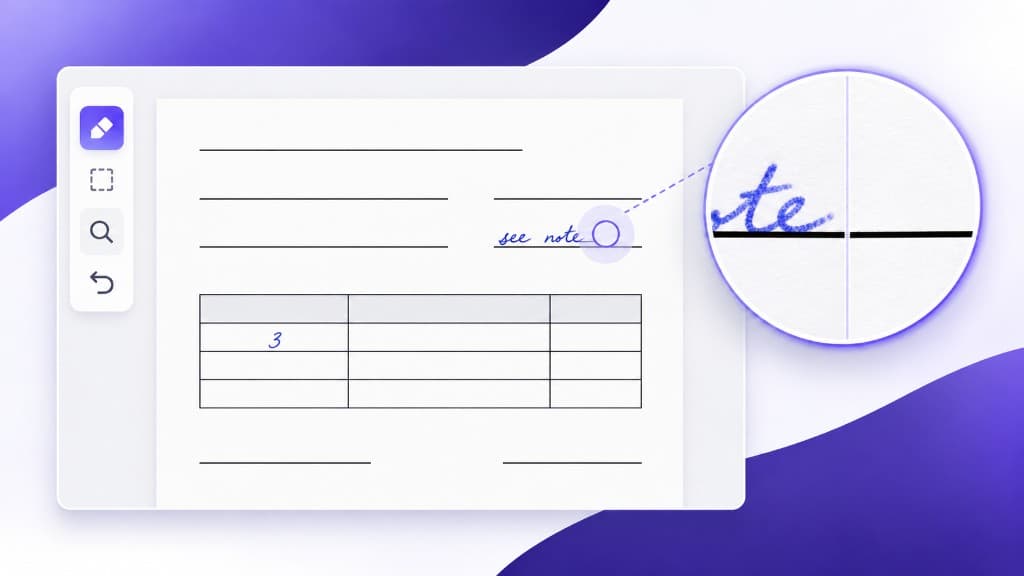
Finish leftover handwriting with the manual eraser
Automatic cleanup removes most handwriting. When a few strokes remain, open the manual eraser and paint those spots white on the result you already have.
Marked areas turn white. Avoid printed text and lines you want to keep. This step does not run another model and does not use extra credits. Edits stay on this page only, so download, print, or export before you leave or refresh.
What you can do in the eraser
Brush
Paint along a leftover stroke. Move the brush-size slider until the circle matches the mark. Start small when the stroke sits next to printed text.
Erase rectangle
Drag a box over a block of leftover writing, such as a name, a grade, or a note in the margin.
Move, zoom, and Fit image
Zoom runs from 1.0× to 8.0×. Use Move to drag the page while you are zoomed in. Fit image returns to 1.0× and scrolls back to the start of the page.
Undo, Redo, and Restore original result
Undo and Redo step through strokes. Restore original result clears every eraser mark and brings back the automatic result.
Apply changes
Apply changes updates the preview, comparison, download, print, and PDF export on this page. Cancel closes the eraser and keeps the last result you applied.
How to use the manual eraser
Process the file first. Then cover only the handwriting the model left behind.
Process the file
Upload an image, a batch, or a PDF and wait until processing finishes. The eraser is available on a completed result.
Open the upload pageOpen the eraser
On a single image, find “Still see handwriting?” and click “Erase remaining marks”. On bulk results and PDF pages, that note appears above the results. Each finished image or page has a “Manual touch-up” button.
Cover only the leftover mark
Zoom in. Use Brush for a thin stroke and Erase rectangle for a block. The eraser reminds you: “Marked areas turn white. Avoid text and lines you want to keep.”
Apply the touch-up
If you cover printed text, click Undo. When the page looks right, click Apply changes. The before-and-after view updates. A touched-up bulk image or PDF page is marked “Edited”.
Download before you leave
Edits stay on this page only. Download your result before leaving or refreshing. A touched-up single image downloads as PNG. On a bulk job, a touched-up image downloads as PNG and is included in the PDF export. On a PDF job, a touched-up page downloads as PNG and is included when you export the document.
Where the eraser shows up
Single image
On the upload page, the “Still see handwriting?” card sits under the result. Click “Erase remaining marks”.
Open the upload pageBulk images
On the bulk remover, a note appears above the finished images. Click “Manual touch-up” on the image you want to fix.
Open bulk cleanupPDF pages
On the PDF remover, each finished page has a “Manual touch-up” button. Export the document after you apply the changes.
Open the PDF removerTips for a clean patch
Zoom in before you paint
A closer view keeps the brush on the leftover ink and off the printed line next to it.
Match the tool to the mark
A small brush follows a thin stroke. A rectangle is faster for an isolated note that does not touch printed text.
White fill shows on tinted paper
Marked areas become white. On colored or gray paper, erase only the mark so the white patch stays small.
Use it for leftovers, not a full rewrite
The eraser paints white. It does not rebuild letters that ink covered. If the whole page is still messy, process it again with Ultra, or send it to manual processing.
FAQ
Q: Does the manual eraser cost credits?
A: No. It edits the result already on the page and does not run another model.
Q: Will my edits be saved in my account?
A: No. They stay in this browser session. Download, print, or export before you leave or refresh. Starting a new file replaces the result you were editing.
Q: Can I open the eraser again?
A: Yes. Strokes you already applied are still there. Restore original result returns to the automatic result.
Q: What color do marked areas become?
A: White. Avoid text and lines you want to keep.
Q: Which pages include the eraser?
A: The upload page, the bulk handwriting remover, and the PDF handwriting remover, after a result is ready.
Touch up a processed file
Run automatic cleanup, then erase whatever handwriting is still visible.
Next step
Use the matching workflow for this topic.