
Color Cleanup: Keep Layout, Straighten Pages, Fix Shadows
Color removes handwriting and keeps color, layout, crop, and lighting. It costs 3 credits per image. Use Ultra (5 credits) for harder scans.
RemoveHandwriting Editorial Team
Product documentation and comparison editors
We publish practical guides, product facts, and comparison frameworks for document handwriting removal. Canonical facts are maintained on the Product Facts page.
Published on May 19, 2026 · Updated September 27, 2026
About the editors
Color cleanup, formerly Advanced AI Cleanup
Advanced AI Cleanup is the former name of Color. Color removes handwriting while keeping original colors, layout, and printed text. It also auto-crops page edges, straightens curled paper, and corrects uneven lighting so phone photos look like clean scans.
On the upload page, select Color before you process an image. Standard costs 1 credit per image and is the fastest option when color output is not needed. Color costs 3 credits. Ultra costs 5 credits and is for dense or difficult scans. Guests can use Color and Ultra when they have enough credits. Legacy unlimited plans cannot use Color or Ultra. If Ultra is still not clean enough, use manual processing.
What Color cleanup does
Remove handwriting completely
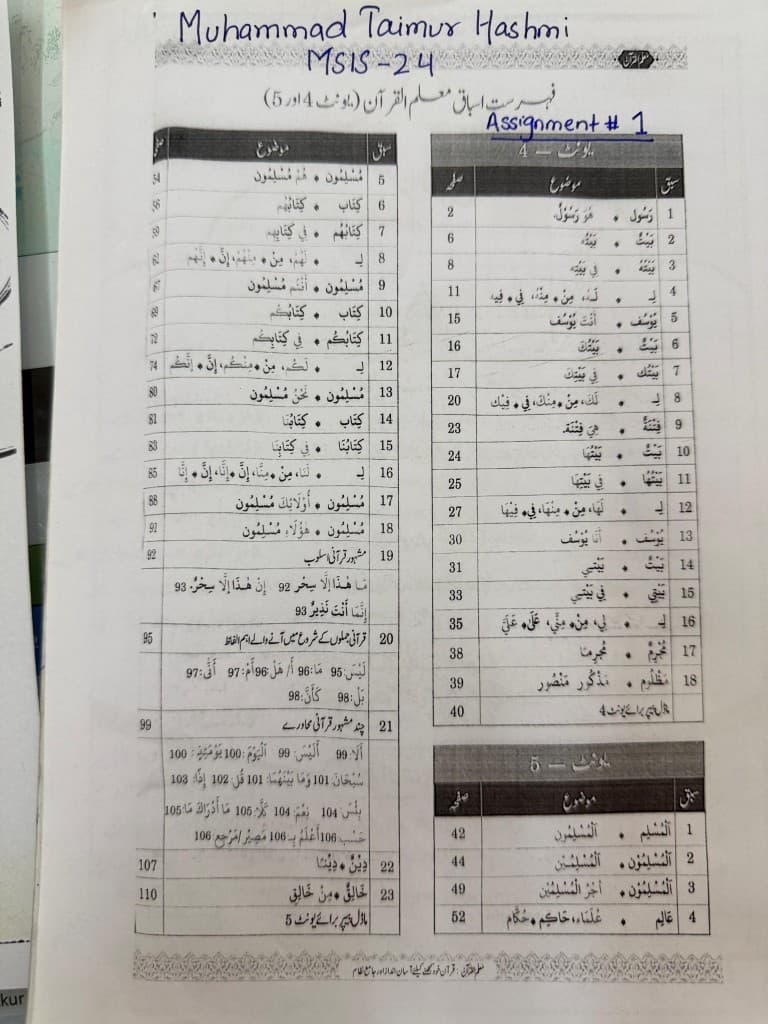
Erases pen and pencil marks—including names, course codes, and assignment labels—without leaving ghosting or smudges on the printed page underneath.
Preserve color, layout, and printed text
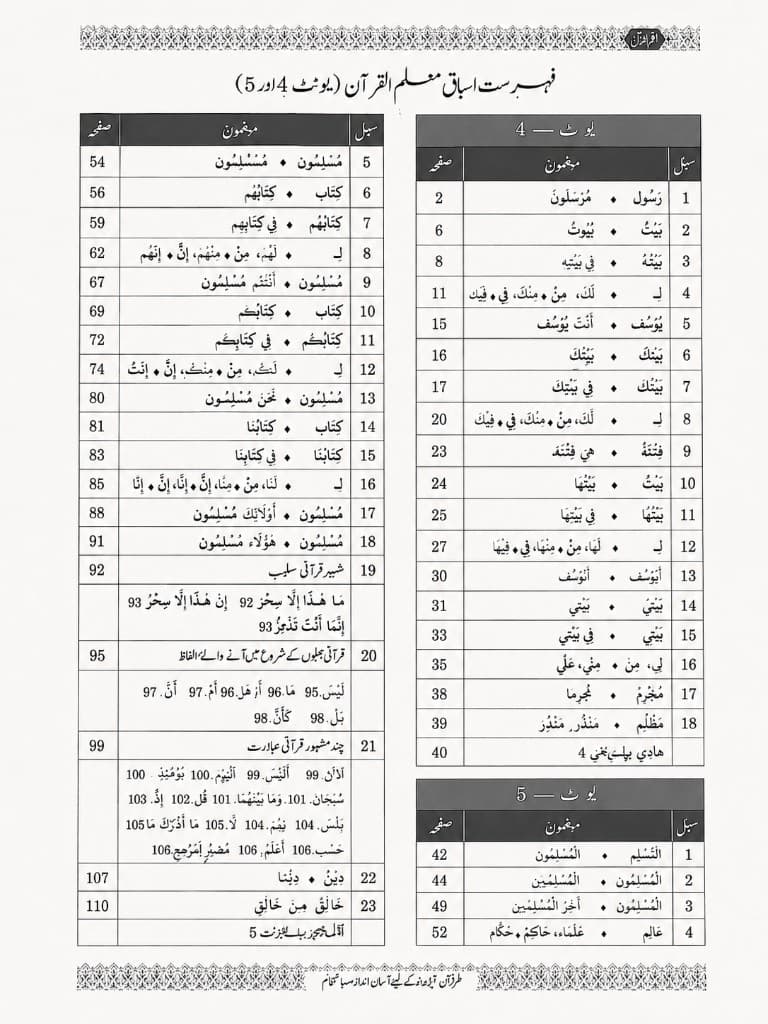
Keeps table headers, shaded rows, decorative borders, and fine printed characters (including Arabic and Urdu ligatures) so the document still reads like the original design.
Auto-crop to the page
Detects document edges and crops out backgrounds, book bindings, and extra desk area so the result focuses on the page itself.
Straighten curled paper
Reduces the visual distortion from pages that lift near the spine or bend when photographed, producing a flatter, scan-like geometry.
Normalize lighting and shadows
Balances uneven illumination from phone cameras—soft shadows, gradients, and glare—into a cleaner, more uniform background.
Before and After Example
Drag the slider to compare a phone photo of a handwritten textbook index page with the Color result. Handwritten blue ink at the top is removed; printed tables, gray header cells, and decorative borders stay intact.
How to use Color on the upload page
Follow these steps when you want scan-quality cleanup from a single image.
Open the upload page
Go to /upload. This is the main workflow for single images, including phone photos of worksheets and book pages.
Open the upload pageUpload your image
Add your document image. The page supports JPG, PNG, JPEG, WEBP, HEIC, and HEIF up to 10MB.
Select Color
Before processing, select Color. This is the model formerly called Advanced AI Cleanup. It removes handwriting while keeping color and layout, and it auto-crops, straightens curled pages, and corrects lighting. Each image costs 3 credits. For dense or difficult scans, select Ultra instead. Ultra costs 5 credits.
Process and review the result
Run the image and wait for processing to finish. Use the on-page before-and-after comparison to confirm handwriting is gone and the printed layout still looks right.
Download, or try Ultra
If you are satisfied, download the cleaned image or export as PDF. If the result is still not clean enough, select Ultra and process again. If Ultra is still not enough, use /manual-processing for expert review.
Standard, Color, and Ultra
Standard
Best when you do not need color output. Fastest option, usually a few seconds, at 1 credit per image. If original colors matter, use Color.
Color
Best when you need color output, faithful layout, auto-crop, straightening, and lighting correction. Costs 3 credits per image and is faster than Ultra. For very dense or difficult scans, use Ultra.
Ultra
Best for complex jobs that Standard and Color cannot handle. Usually about 1 minute per image, at 5 credits. Skip it when Standard or Color already looks good enough.
If Ultra is still not clean enough, use manual processing.
Best use cases for Color
Student worksheets and exam papers
Clean marked assignments or practice tests so you can reuse the printed content without names, grades, or notes on top.
Teacher handouts and course materials
Refresh class materials that were written on in pen while keeping colored headers, tables, and instructional layout.
Phone photos of book pages
Turn curved, shadowed captures from textbooks into straighter, scan-like pages—ideal for index pages, syllabi, and reference tables.
Forms, tables, and multilingual documents
Preserve structured layouts and complex scripts after removing handwritten annotations or fill-in marks.
Related next steps
Explore color-focused tips, manual processing for difficult pages, or PDF workflows.
FAQ about Color cleanup
Q: How many credits do Standard, Color, and Ultra cost?
A: Standard costs 1 credit per image, Color costs 3, and Ultra costs 5. Guests can use Color and Ultra when they have enough credits. Legacy unlimited plans cannot use Color or Ultra.
Q: How is Color different from Standard and Ultra?
A: Standard is the fastest cleanup when color output is not needed. Color, formerly called Advanced AI Cleanup, keeps color and layout more faithfully and adds auto-crop, straightening, and lighting correction. Ultra is for dense or difficult scans that the other models cannot handle.
Q: Should I use this for multi-page PDFs?
A: For single images, start on /upload and select Color. For multi-page PDFs, use /pdf-handwriting-remover so you can preview and process pages in a document workflow.
Q: What if the result is still not good enough?
A: Select Ultra and process the image again. If Ultra is still not clean enough, use /manual-processing when handwriting is very dense, overlaps printed text, or the scan quality is poor.
Q: How does this relate to the preserve-color guide?
A: The earlier article on removing handwriting without black-and-white output explains the color-preservation use case. This post covers Color—the model formerly called Advanced AI Cleanup—including crop, straighten, and lighting, and when to switch to Ultra.
Clean an image with Color
Open the upload page, select Color, and turn your next phone photo into a clean, scan-like document.
Next step
Use the matching workflow for this topic.