
How to Remove Handwritten Answers from Worksheets
Learn how to remove handwritten answers from worksheet images and scanned PDFs, review the results, and download clean copies for repeat practice.
RemoveHandwriting Editorial Team
Product documentation and comparison editors
We publish practical guides, product facts, and comparison frameworks for document handwriting removal. Canonical facts are maintained on the Product Facts page.
Published on
About the editors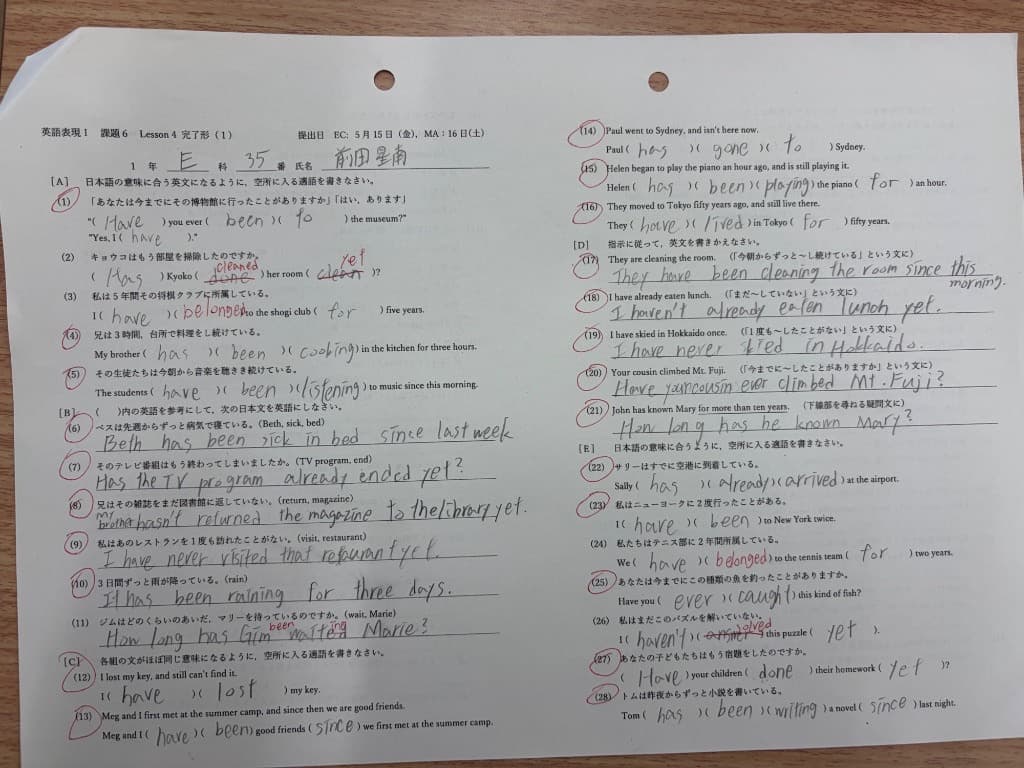
You can often remove handwritten answers from worksheets by cleaning a photo or scanned page, then downloading a copy for another practice session. This can help a student retry a problem set, a parent prepare revision sheets, or a teacher reuse a handout. Keep the completed original separately so you can still check the earlier work.
First, identify how the answers were added. Pen or pencil captured in a photograph is part of the page image. Typed answers in an editable document and PDF comment objects are different: delete those in the original document or a suitable PDF editor. This guide focuses on handwriting embedded in worksheet images and scanned PDFs.
Choose the workflow for your worksheet
Use the file you already have. There is no need to combine separate photos into a PDF just to clean them.
| Your file | Use this tool | What to do |
|---|---|---|
| One worksheet photo or scan | Image handwriting remover | Upload one image, compare the output and download it. |
| One multi-page scanned PDF | PDF handwriting remover | Preview the pages and choose which ones to process. |
| Several worksheet images | Bulk handwriting remover | Add the images and start a batch; review each result. |
Remove handwritten answers from a worksheet image
Start with a clear, evenly lit photograph or scan. Keep the full question area visible and avoid fingers, shadows and glare. If an answer crosses a diagram or equation, retain the original for comparison.
- Open the image tool and review the selected processing mode and displayed credit cost before choosing your file. Upload the worksheet image; the standard image workflow can start automatically after upload once its requirements are met.
- Wait for the result. If verification, sign-in or another requirement blocks processing, follow the message on the page. Do not assume every worksheet will finish in a fixed number of seconds.
- Use the before-and-after comparison to inspect both the cleared answer areas and the printed questions. Download the processed image only after checking that it is suitable for another practice attempt.
Remove answers from a scanned worksheet PDF
Choose the PDF workflow when your worksheets are already stored as one scanned document. Handwriting baked into the scan is cleaned as page imagery; it is not treated as a separate editable comment.
- Upload the PDF and wait for the page previews. Select the pages containing answers you want to clear; leave unrelated pages out of the processing selection.
- Review the selected page count, processing mode and displayed cost, then start processing. Uploading the PDF alone does not mean all its pages have been cleaned.
- Inspect the selected page results before downloading the processed PDF. Check page order and readability. The export follows the image-processing workflow and does not guarantee the original editable text layer.
Clean several worksheet photos in a batch
For a folder of homework photos or separate scanned sheets, use the bulk image tool. Each image is processed independently; a batch is a way to manage several images, not reconstruct them as a newly typeset document.
- Add the worksheet image files and check that the intended sheets are included. Review the selected mode, image count and displayed credit cost before starting the batch.
- Start processing with the batch control. Follow each image’s status and review any failure message rather than assuming that one completed result means the entire set is ready.
- Compare every completed image with its original, then use the available download controls to save the cleaned results. Keep filenames organized so a revised worksheet is not confused with its answer-filled original.
Saved example: a Japanese–English worksheet
The pair below is an existing saved page-image example showing a worksheet before and after handwriting cleanup. It was not processed for this article and does not demonstrate a complete PDF export or a batch task. Results vary with the source image.
Before: completed worksheet
After: saved cleanup result
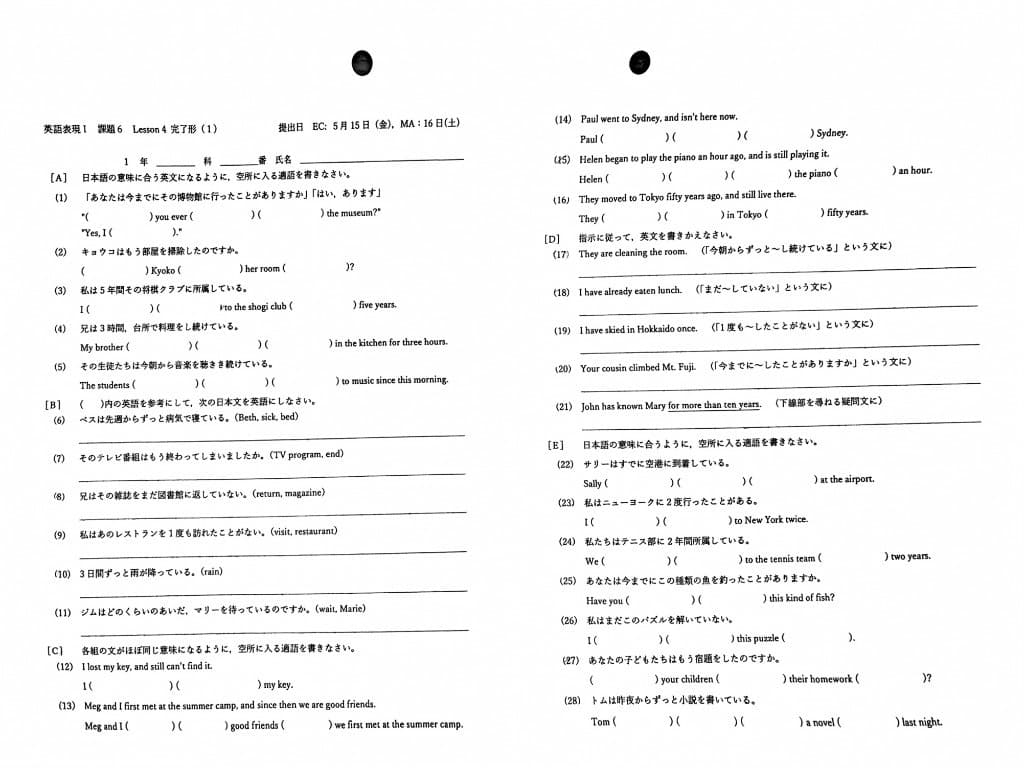
Check the cleaned worksheet before printing
A blank-looking answer area is only useful if the question remains accurate. Zoom in and compare these details with the original:
- Printed words and question numbers: watch for missing letters where handwriting overlaps the text.
- Mathematical notation: check minus signs, decimal points, fractions, exponents and units individually.
- Table lines and answer boxes: make sure boundaries still identify the intended spaces to write.
- Diagrams and labels: confirm that arrows, axis labels and small printed symbols remain readable.
- Overlapping strokes: inspect places where pencil work, red corrections or circles cross printed content.
For a few leftover strokes, the existing manual eraser can help touch up the processed result. Work carefully around printed information and compare again afterward. If a question is damaged or unreadable, use a better source or the original blank worksheet instead of guessing what was there.
See how to touch up leftover handwritingWhat worksheet cleanup does and does not preserve
The aim is to remove handwriting while keeping printed content readable, not to preserve every other pixel exactly. Faint pencil, blur, textured paper and dense writing can affect the result. Automatic whole-page cleanup may erase student answers and teacher corrections together; it does not promise to keep one person’s handwriting while deleting another’s.
To erase answers from a worksheet that contains editable typed text, use the source document when available. For PDF annotations, use an editor that can delete those objects. Scanned handwriting removal does not preserve digital-signature validity or reconstruct missing question text. Keep an untouched original and print a test copy before preparing a whole class set.
Worksheet answer removal FAQ
- Can I turn a completed worksheet photo into a fresh practice copy?
- Often, yes, when the printed questions are readable and the answers are handwritten. Use the image tool, compare the cleaned result with the original, and check the questions before printing. A clean-looking page still needs review.
- Will cleanup keep equations and printed questions exactly the same?
- Exact preservation is not guaranteed. Pay particular attention to small mathematical symbols and any printed details crossed by handwriting. If a detail changes, return to a clearer source or an original blank copy rather than relying on an inferred repair.
- Can I clear pencil answers and red teacher corrections separately?
- Both kinds of marks may be removed in whole-page cleanup. The workflow does not promise to remove only red corrections while retaining handwritten answers. Faint pencil and overlapping marks can also leave residual strokes.
- Does a scanned worksheet PDF stay editable after cleanup?
- Do not assume so. The workflow processes page images and exports the results; it does not guarantee preservation of the original editable text layer. It also differs from deleting comment objects in an annotated PDF.
- What if I have twenty separate worksheet photos?
- Use the bulk image workflow, subject to the current on-page limits. Confirm the files and displayed cost before starting, then inspect each image independently. Use the PDF workflow instead if the worksheets are already one multi-page PDF.
More help with practice materials
- Cleaning exam papers
For the broader exam-paper workflow, see the existing guide.
- Refreshing assignments and exam papers
For organizing another practice round, read the assignment-refresh guide.
Next step
Use the matching workflow for this topic.