
How to Remove Handwriting from Large PDFs: Split First, Then Process
When your PDF is too large for our PDF handwriting remover, use the Split PDF tool first to split it into smaller files, then remove handwriting from each part. Step-by-step guide with links to both tools.
RemoveHandwriting Editorial Team
Product documentation and comparison editors
We publish practical guides, product facts, and comparison frameworks for document handwriting removal. Canonical facts are maintained on the Product Facts page.
Published on February 5, 2026
About the editors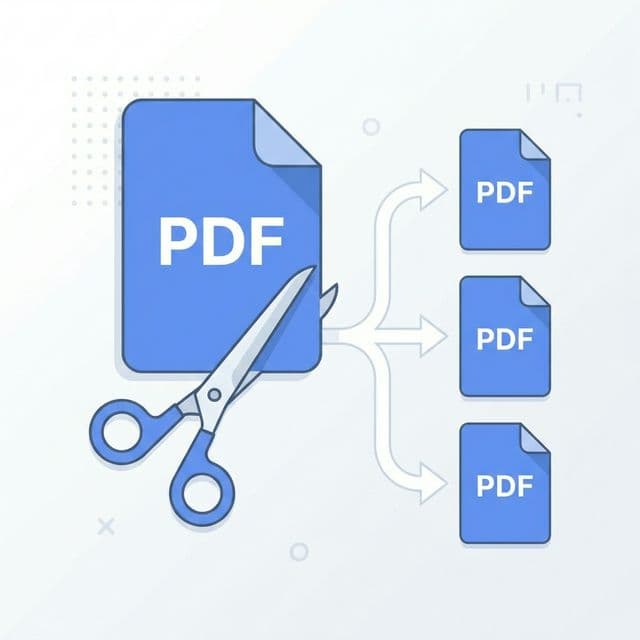
Remove Handwriting from Large PDFs: Split First, Then Process
When you use our PDF handwriting remover to erase handwritten marks from a PDF, the tool has file size and page limits. If your PDF is too large or has too many pages, the upload may fail or hit limits.
Use our Split PDF tool first to split your large PDF into smaller PDFs. Then run each smaller PDF through the PDF handwriting remover. This workflow lets you remove handwriting from any size document.
Why Split a Large PDF Before Handwriting Removal?
PDF Handwriting Remover Limits
The PDF handwriting remover supports PDFs up to 50MB and a maximum of 50 pages per document. Larger files or longer documents must be split to stay within these limits.
Faster and More Reliable Processing
Smaller PDFs process faster and are less likely to time out. Splitting also lets you process only the pages that need handwriting removed.
Same Quality, Manageable Chunks
Each smaller PDF is processed with the same AI handwriting removal quality. You can then merge or keep the cleaned PDFs as separate files.
How to Remove Handwriting from a Large PDF
Follow these steps: first split your large PDF with our Split PDF tool, then remove handwriting from each part with the PDF handwriting remover.
Open the Split PDF Tool
Go to RemoveHandwriting.com/split-pdf. This tool splits one PDF into multiple smaller PDFs by page ranges or by fixed page count.
🔗Open Split PDFUpload and Split Your Large PDF
Upload your large PDF, then choose how to split it (e.g., every 10 or 20 pages, or custom ranges). Download the resulting smaller PDFs.
🔗Open Split PDFOpen the PDF Handwriting Remover
Go to RemoveHandwriting.com/pdf-handwriting-remover. This tool removes handwritten marks from PDFs while keeping the layout.
🔗Open PDF Handwriting RemoverProcess Each Smaller PDF
Upload each split PDF one at a time, select the pages to process, and run the handwriting removal. Download each cleaned PDF.
Combine or Use Your Clean PDFs
You now have multiple cleaned PDFs. Use them as-is or merge them back into one document with a PDF merge tool if needed.
Process Overview
Split PDF
Use Split PDF tool
Get Smaller PDFs
Download split files
Remove Handwriting
Use PDF handwriting remover on each
Download Clean PDFs
Use or merge results
Need Help?
If you run into limits or errors when splitting or removing handwriting from PDFs, check our help page or contact us. We can help you choose the right page ranges and workflow.
📧Contact UsSplit PDF
Break large PDFs into smaller, processable files
Remove Handwriting
AI removes handwritten marks from each PDF
No Size Limit
Handle PDFs of any size by splitting first
Frequently Asked Questions
What are the PDF size limits for the handwriting remover?
The PDF handwriting remover supports PDFs up to 50MB and a maximum of 50 pages per document. If your file is larger or has more pages, use the Split PDF tool first to create smaller PDFs.
Where do I find the Split PDF tool?
The Split PDF tool is at RemoveHandwriting.com/split-pdf. You can split by page ranges or by a fixed number of pages per file.
Do I need to merge the cleaned PDFs back together?
No. You can keep the cleaned PDFs as separate files. If you need one combined document, use a PDF merge tool to combine them after processing.
Can I remove handwriting from only some pages of a large PDF?
Yes. After splitting, upload only the split PDFs that contain the pages you want to clean. You can also use the PDF handwriting remover's page selection to process only certain pages within each file.
Next step
Use the matching workflow for this topic.