
How to Remove Handwriting from Images and Create Before/After PDF Comparison (2026)
Complete guide to removing handwriting from images using AI, then creating before/after PDF comparisons. Step-by-step workflow for cleaning documents and archiving results. Free tools, no registration required.
RemoveHandwriting Editorial Team
Product documentation and comparison editors
We publish practical guides, product facts, and comparison frameworks for document handwriting removal. Canonical facts are maintained on the Product Facts page.
Published on January 23, 2026
About the editors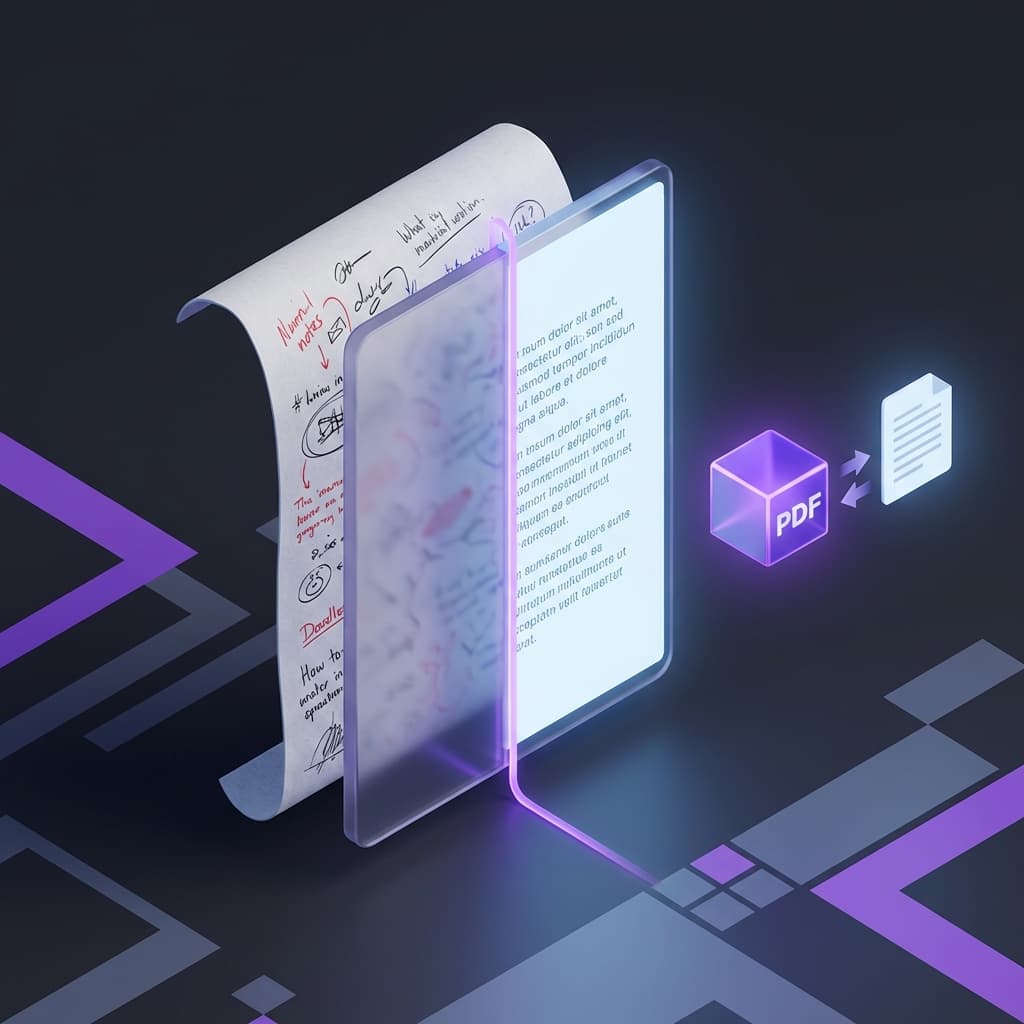
The Challenge: Showcasing Handwriting Removal Results
After removing handwriting from images, how do you save and showcase the processing results?
Saving original and processed images separately makes it inconvenient to compare and share.
Use our PDF merge tool to create before/after comparison documents, completing your workflow from removal to archiving.
A complete workflow solution that enhances your document processing experience.
Why Create Before/After PDF Comparisons?
The benefits of combining original and processed images into a single PDF document
Effect Verification
Visually see the processing results side by side, making it easy to verify the quality of handwriting removal.
Document Archiving
Save complete processing records for future reference, maintaining a full history of your document cleanup work.
Easy Sharing
A single PDF file is convenient to transmit and share with colleagues, students, or clients.
Professional Presentation
Perfect for work reports, teaching demonstrations, and showcasing your document processing capabilities.
Quality Control
Compare original images to verify processing quality and ensure all handwriting has been properly removed.
Complete Workflow: Remove Handwriting and Create PDF Comparison
Step-by-step guide to cleaning documents and archiving results
Prepare Original Images
Take photos or scan documents containing handwriting. Ensure images are clear (200+ DPI) and in supported formats: JPG, PNG, or WEBP.
💡 Tip: For best results, use good lighting and avoid shadows or glare on the document.
Remove Handwriting Content
Visit RemoveHandwriting.com and upload your images for AI processing. Our advanced AI will automatically identify and remove all handwritten content while preserving the original document layout.
💡 Tip: Processing typically takes 5-10 seconds per image. Download the cleaned images once processing is complete.
Merge to PDF
Access our Images to PDF tool and upload both original and cleaned images in order. Adjust the image sequence (original first, then cleaned result) and merge them into a single PDF document with one click.
💡 Tip: You can merge multiple image pairs to create comprehensive comparison documents.
Use and Share
Review the comparison effects, save as archive records, or share with colleagues or students. The PDF format ensures compatibility across all devices and platforms.
💡 Tip: Use descriptive filenames to easily identify your processed documents later.
Real-World Application Scenarios
Discover how this workflow benefits different users and scenarios
Comparison Display
Showcase handwriting removal effects by comparing original and processed images side by side.
Workflow:
Upload original image → Remove handwriting → Merge original and cleaned images to PDF → Get before/after comparison document
Applications:
Teaching demonstrations, effect showcases, quality verification
Document Archiving
Save complete processing records for multiple document images, maintaining a full history.
Workflow:
Process multiple document images → Keep original and cleaned versions for each → Merge in order (original-result-original-result...) → Create complete processing record document
Applications:
Archive management, work records, project documentation
Batch Processing Comparison
Batch process multiple images and create unified comparison documents for easy review.
Workflow:
Batch upload multiple images with handwriting → Batch process to remove handwriting → Merge all originals and results into one PDF → Conveniently view all processing effects
Applications:
Exam paper cleanup, homework grading, document organization
Teaching Material Creation
Teachers create teaching materials that showcase the cleanup process for educational purposes.
Workflow:
Clean exam papers or homework → Merge original and cleaned images → Add explanatory text (optional) → Generate teaching PDF document
Applications:
Teacher lesson preparation, student practice, teaching demonstrations
Work Reporting
Showcase document processing work results for professional presentations.
Workflow:
Process important documents → Create before/after comparison PDF → Use for work reports and result showcases
Applications:
Project reporting, result showcases, work records
Quality Inspection
Verify handwriting removal effects and ensure quality through systematic comparison.
Workflow:
Process document images → Create original and result comparison PDF → Check processing effects page by page → Adjust if issues are found
Applications:
Quality control, effect verification, error checking
Tool Advantages
Why choose our complete solution for handwriting removal and PDF creation
AI Handwriting Removal Tool
High-Precision Recognition
Advanced AI accurately identifies handwritten content with over 95% accuracy in standard scenarios.
Preserve Original Layout
Maintains the original document structure and formatting while removing handwriting.
Fast Processing
Process images in 5-10 seconds, significantly faster than manual editing methods.
Multiple Document Types
Supports various document types including exam papers, homework, forms, and business documents.
PDF Merge Tool
Multiple Image Support
Merge multiple images into a single PDF document with customizable order.
Preserve Image Quality
Maintains original image quality without compression or quality loss.
No Registration Required
Completely free to use, no account creation or subscription needed.
Browser-Based Processing
All processing happens in your browser, ensuring complete privacy and security.
Best Practices
Tips to optimize your handwriting removal and PDF creation workflow
Image Order Recommendation
Use the pattern: original-result-original-result for easy comparison. This allows viewers to immediately see the before and after effects.
File Naming Convention
Use descriptive filenames like 'exam-paper-1-original.jpg' and 'exam-paper-1-cleaned.jpg' for easy identification and archiving.
Batch Processing Tips
Process multiple images at once, then merge all originals and results in a single PDF to improve workflow efficiency.
Quality Check Points
Always review the comparison PDF to ensure processing quality. Check that all handwriting has been removed and the document layout is preserved.
Frequently Asked Questions
Q: How do I ensure the correct image order in the PDF?
A: Our Images to PDF tool allows you to drag and reorder images before merging. Simply arrange them in your preferred order (original-result-original-result) and click merge.
Q: How many images can I merge into one PDF?
A: You can merge as many images as needed. There's no strict limit, but we recommend keeping PDFs under 50MB for optimal performance and easy sharing.
Q: Will the processed image quality be lost?
A: No, our AI handwriting removal tool preserves the original image quality. The PDF merge tool also maintains image quality without compression, ensuring your documents look professional.
Q: Do I need to register for an account?
A: No registration is required for either tool. Both the handwriting removal tool and PDF merge tool are completely free to use without creating an account.
Q: What scenarios is this workflow suitable for?
A: This workflow is perfect for students cleaning exam papers, teachers creating teaching materials, businesses organizing documents, and anyone who needs to remove handwriting and create professional comparison documents.
Q: How do I batch process multiple images?
A: Upload multiple images to the handwriting removal tool, process them all, then download the cleaned images. Next, upload both original and cleaned images to the PDF merge tool in the desired order.
Q: What is the accuracy rate of handwriting removal?
A: Our AI achieves over 95% accuracy in removing handwritten content while maintaining printed content and layout in most standard document scenarios. Accuracy may vary based on image quality and handwriting density.
Q: What image formats are supported?
A: Both tools support JPG, PNG, and WEBP formats. For best results, use clear images with 200+ DPI resolution.
Start Your Handwriting Removal Workflow Today
Experience the complete solution for removing handwriting from images and creating professional before/after comparison documents.
Try our AI handwriting removal tool and PDF merge tool now. Create professional comparison documents in minutes, completely free and without registration.
Complete workflow solution
Free to use, no registration
High-quality results
Privacy-protected processing
Next step
Use the matching workflow for this topic.